Staff Operations Portal
User Guide
A current staff-facing guide to the HCCTS Staff Operations Portal: accessing the portal, finding department resources, opening approved digital tools, viewing sites and calendars, searching, submitting requests, and reviewing privacy and terms. Updated for the September 3, 2026 production release, including staff-only Google Workspace SSO, the refreshed request-routing experience, the current Sites directory, the Staff Incident Report shortcut in Emergency & Staff Resources, four featured Digital Tools on the homepage, and improved mobile navigation.
System Overview
The HCCTS Staff Operations Portal is an internal staff resource for Highlands Community Charter & Technical Schools. It brings department information, approved digital tools, school-site information, calendars, search, staff updates, and internal request intake into one consistent experience.
Most employees use only the staff-facing pages in this guide. Content-management and administrative tools are restricted to authorized staff and are documented separately in the Admin Guide.
Home & Departments
Start from the homepage, browse published departments, and find contacts, resources, FAQs, and department-specific tools.
Digital Tools
Open approved HCCTS custom systems, including featured tools such as Highlands Brain.
Requests
Submit an internal request, follow any routing instructions shown by the form, and retain the request reference number.
Search
Search across portal resources and linked content from the homepage or the dedicated Search page.
Sites & Calendars
Find current school-site details, directions, official school calendars, and employee work calendars.
Staff Access
Staff-only Google Workspace SSO protects the portal. Administrative and editor permissions remain separate and role-restricted.
| What you need to do | Where to go |
|---|---|
| Find a department contact, resource, form, or FAQ | Departments |
| Open an HCCTS-built staff system | Digital Tools |
| Find a school location or directions | Sites |
| Open a school or employee work calendar | Calendars |
| Find a resource without knowing which department owns it | Search |
| Send a service, support, or department request | Submit Request |
| Review portal privacy or acceptable-use terms | Privacy and Terms of Service |
Accessing the Portal
Standard staff access begins at the Staff Portal Access screen. Google Workspace is the primary production sign-in method.
- 1Open the Staff PortalIf your staff session is not active, the portal sends you to the Staff Portal Access screen.
- 2Select Continue with GoogleUse your HCCTS staff Google Workspace account. The portal verifies the Google identity through Firebase Authentication.
- 3Choose an authorized staff accountThe current staff boundary is the exact @hccts.org domain. Student accounts such as @student.hccts.org and personal Google accounts are not authorized for staff access.
- 4Continue to the portalAfter verification, a signed staff session is created and you return to the page you were trying to open.
Navigation & Homepage
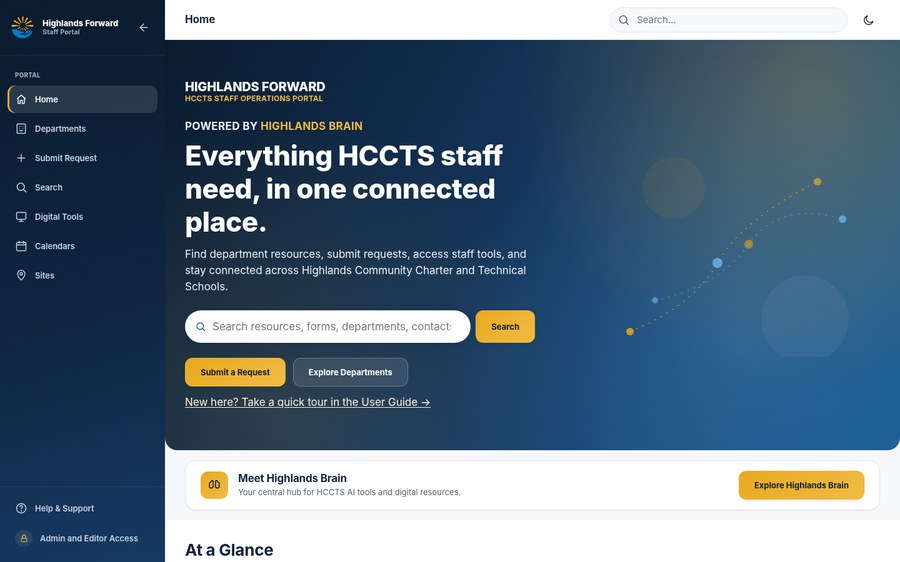
The homepage is the main staff landing page. It combines portal search, quick actions, Highlands Brain access, staff updates, department browsing, organization links, and emergency/staff resources.
Desktop sidebar
Use Home, Departments, Submit Request, Search, Digital Tools, Calendars, and Sites. The sidebar can be collapsed on larger screens.
Mobile navigation
On smaller screens, open the menu button to reach the same staff pages. The navigation list scrolls independently, while your account and the Sign out control remain available at the bottom.
Portal search
Search from the homepage or the top navigation. Results open on the dedicated Search page.
Theme control
Use the sun/moon control in the top bar to switch between light and dark appearance.
Emergency & Staff Resources
Use Staff Incident Report for the approved incident-reporting system and I.T. Help Desk for technology support. These shortcuts are available from the homepage.
Department Pages
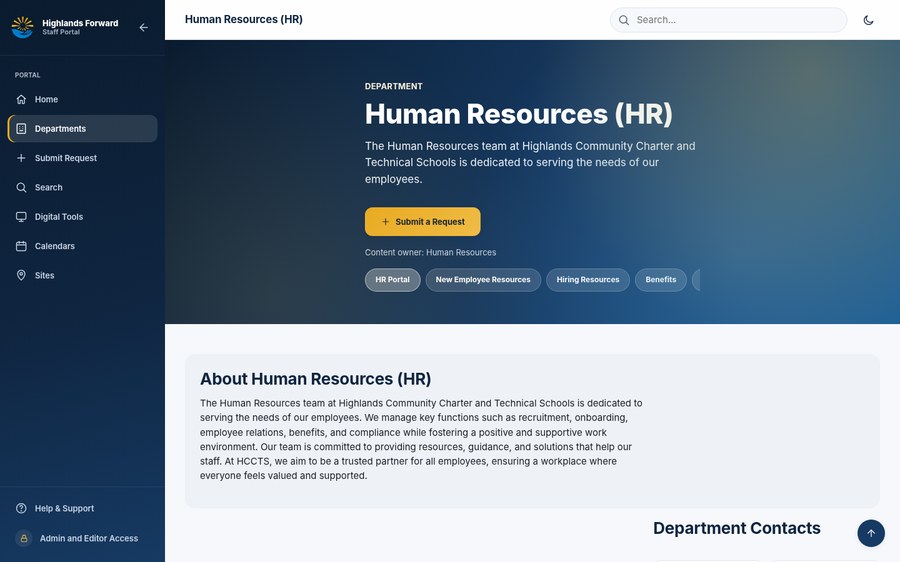
Department pages are the primary place to find a team’s current overview, contacts, staff resources, FAQs, links, and department-specific digital tools. Content varies by department, so use the page itself as the current published reference.
Digital Tools
The homepage intentionally shows up to four featured Digital Tools for a cleaner staff landing page. Select All Tools to open the Digital Tools page and browse the complete approved system catalog.
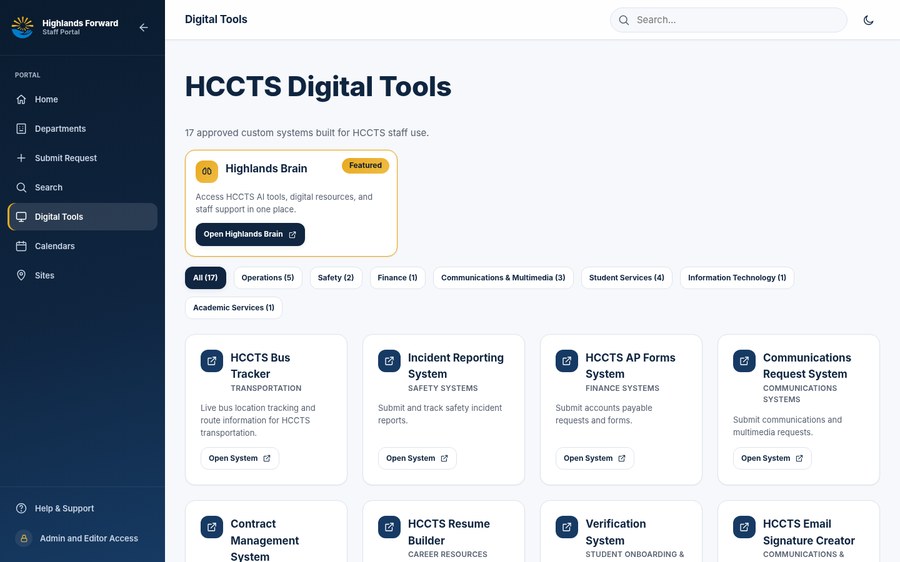
- 1Open All Tools when neededThe homepage shows only the four featured cards. Use All Tools for the full catalog, then filter by department when helpful.
- 2Review the cardThe system name, purpose, and department association help confirm that you are opening the right tool.
- 3Open the systemSelect the tool action. External systems open in a separate destination and may have their own access requirements.
Sites & Calendars
Use Sites for location information and directions. Use Calendars for the published school and employee work calendars for the current school year.
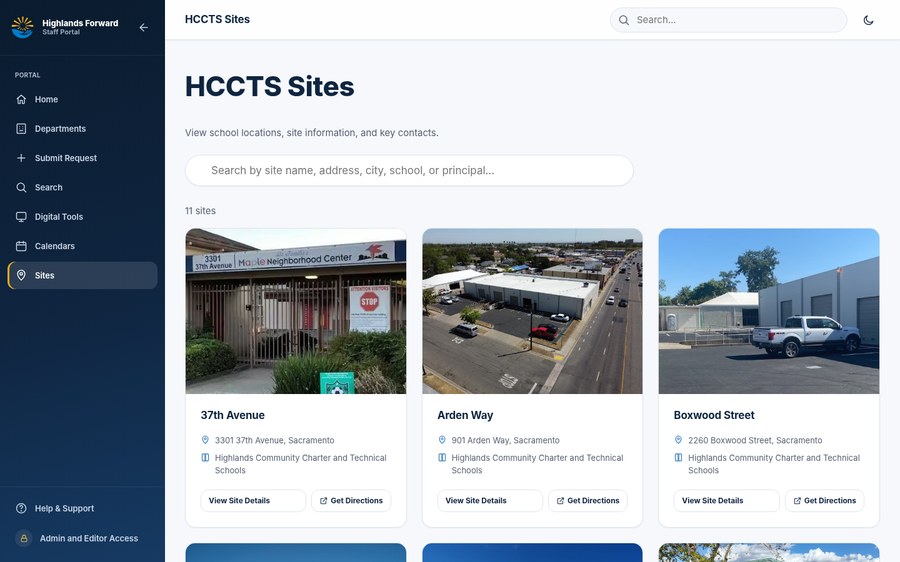
Interface reference image. The production directory now contains 10 active locations; Folsom Boulevard is no longer included.
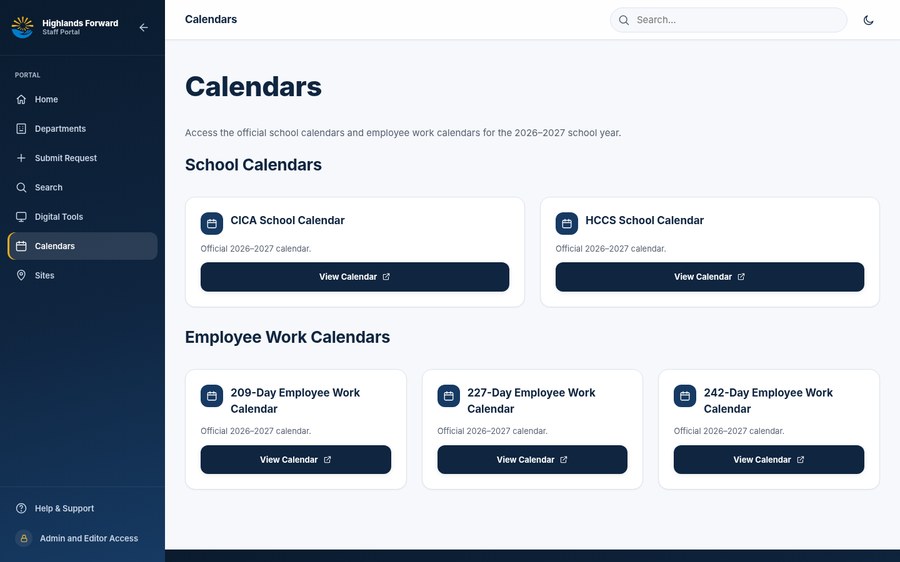
Calendar cards are grouped into School Calendars and Employee Work Calendars. Select View Calendar to open the published calendar. If a calendar link appears incomplete or does not open, use Help & Support to report it.
Search
Search is designed for staff who know what they need but not necessarily which department owns it. Enter a resource, task, policy, form, department, or topic such as benefits, enrollment, or purchasing.
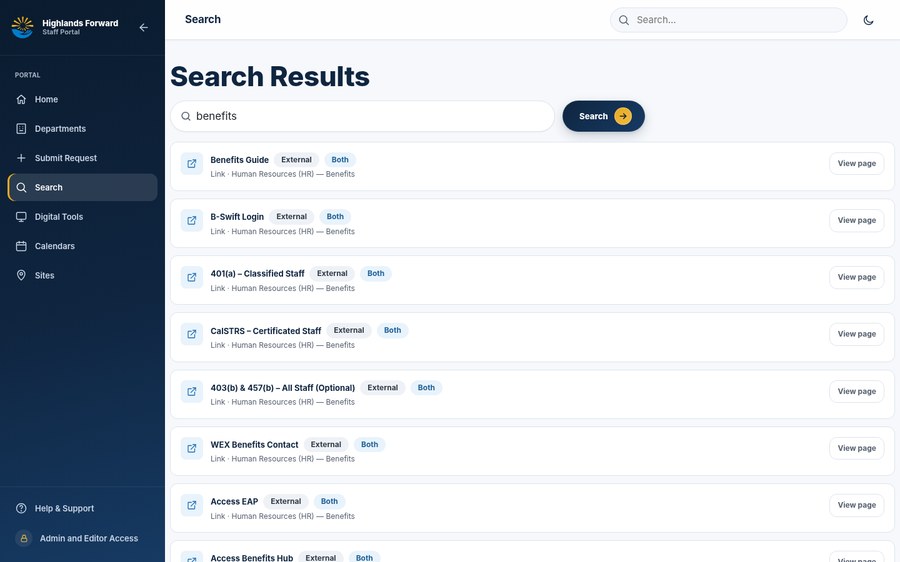
Keyword results first
The portal returns usable keyword results without waiting for optional AI-assisted relevance refinement.
AI assistance when enabled
For eligible queries, an optional AI-assisted pass may refine relevance after the initial results are visible. Search remains usable if that enhancement is unavailable.
External labels
Results marked External leave the portal. Review the destination and use approved HCCTS credentials as needed.
Submit a Request
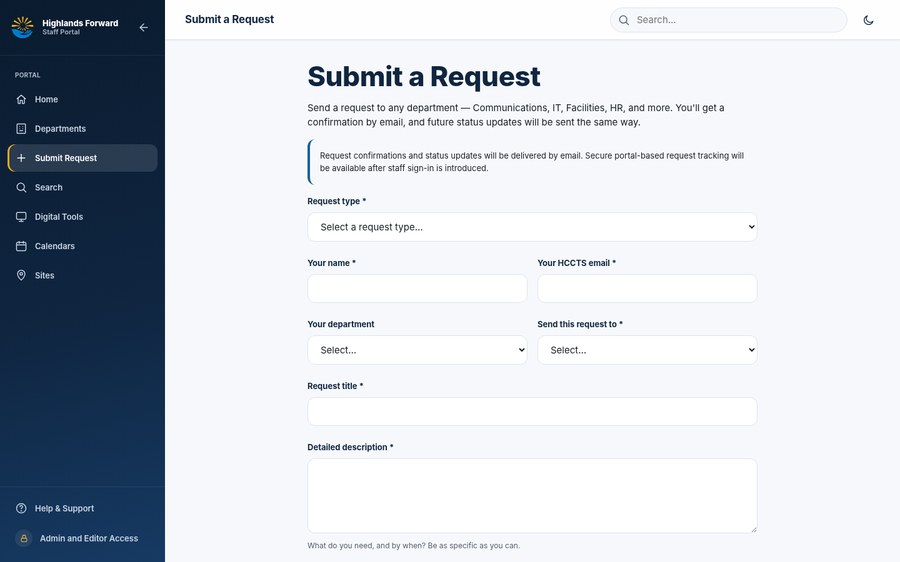
Use Submit a Request when you need a department to take action, provide support, review work, or follow up. The form supports multiple request types and may redirect certain request types to a specialized approved system.
| Request type | Production destination |
|---|---|
| Communications request, Photography, Video production, Presentation design | HCCTS Communications Request System |
| Website update, Data request, Digital help | Internal request routed to Brain@hccts.org |
| Technology support | HCCTS Technology Support Google Form |
| Facilities request | HCCTS Maintenance Request System |
| Safety request | Incident Reporting System for urgent/formal incidents; non-urgent requests route to Safety@hccts.org |
| Purchasing request | HCCTS Supply Request System |
| Contract request | HCCTS Contract Management System |
| Transportation assistance | HCCTS Bus Tracker |
| Human Resources request | Internal request routed to HR@hccts.org |
| Student Services Form | Official Student Services Google Form |
| Resume support | HCCTS Resume Builder |
| New student registration | HCCTS.org |
- 1Select the request typeIf the portal displays a routing panel for that request type, follow the approved system or internal-routing instructions shown on screen.
- 2Complete the required informationProvide your name, HCCTS email, destination department, request title, and a clear description. Complete optional context fields when they help the receiving team act on the request.
- 3Add an attachment only when available and necessaryIf portal attachments are unavailable, submit the request without a file and use an approved follow-up channel if the receiving team needs supporting material.
- 4Submit and keep the reference numberThe confirmation screen provides a request reference. Confirmation and future status updates are delivered by email when email delivery succeeds.
Privacy & Support
The portal’s Privacy Policy and Terms of Service are published together on the legal page. The production documents were updated and made effective on August 31, 2026 to reflect the current staff-only Google Workspace authentication and session model.